Features
Everything in Focusly 2.0
A floating timer, a tray, and a few quiet cues that bring you back. Here is all of it.
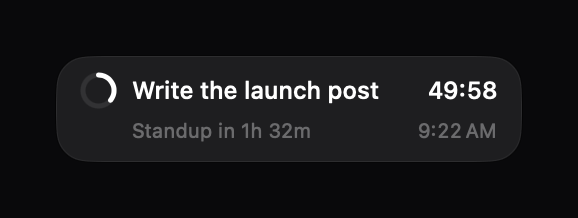
Floating timer
A small glass pill that keeps your one task in view, wherever you are working.
- Shows your task, the countdown, the current time and the runway to your next calendar event, like “Standup in 1h 32m”.
- Drag it anywhere. Each display remembers its spot, and it works across multiple displays.
- Hide it without quitting, from the × that appears on hover or from the right-click menu.
Menu-bar tray
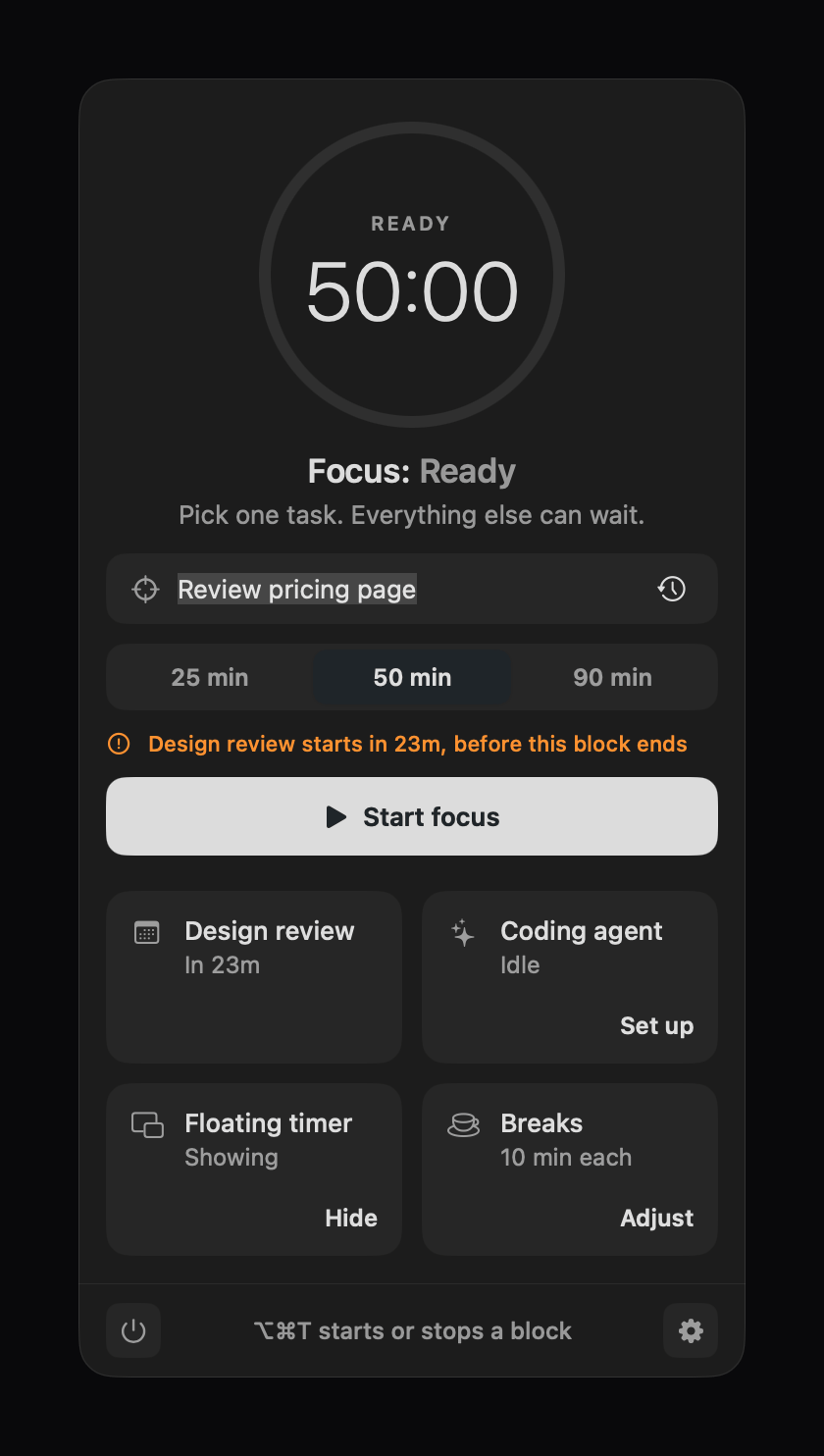
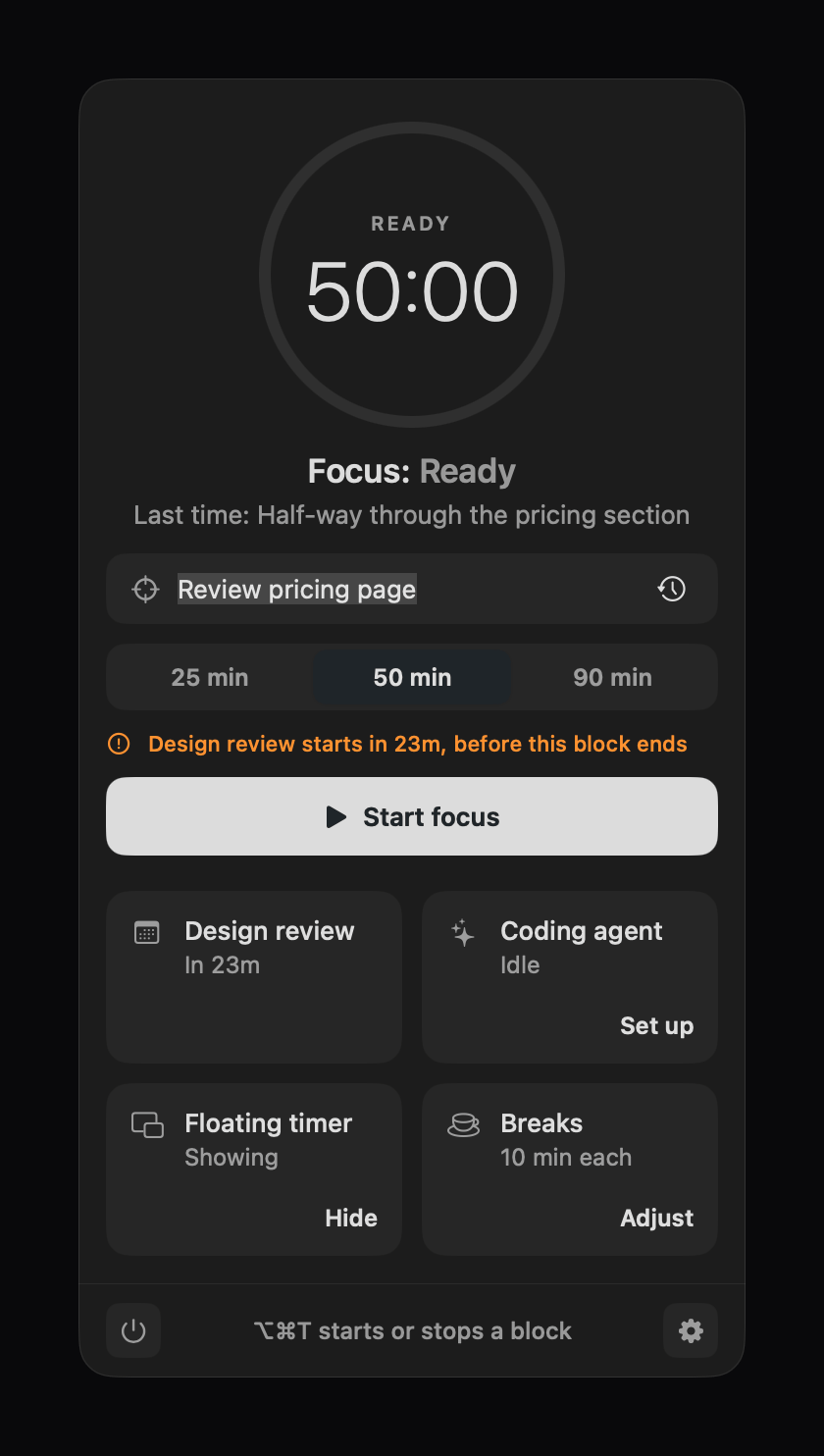
Everything Focusly does lives in one tray under its menu-bar icon.
- A progress ring and your status, starting at “Focus: Ready”.
- A task field with your recent tasks, and 25, 50 or 90 minute blocks.
- One “Start focus” button.
- Cards for your next meeting, your coding agent, the floating timer and breaks.
- Native macOS UI that follows light and dark mode, with Liquid Glass on macOS 26 and later.
Meeting runway
Focusly reads your calendar so a focus block never quietly eats into a meeting.
- Warns you before you start when a block would run into a meeting.
- The floating timer always shows the time until your next event.
- Calendar access is optional and read-only.
Design review starts in 23m, before this block ends
Review pricing page50:00
Design review in 23m2:37 PM
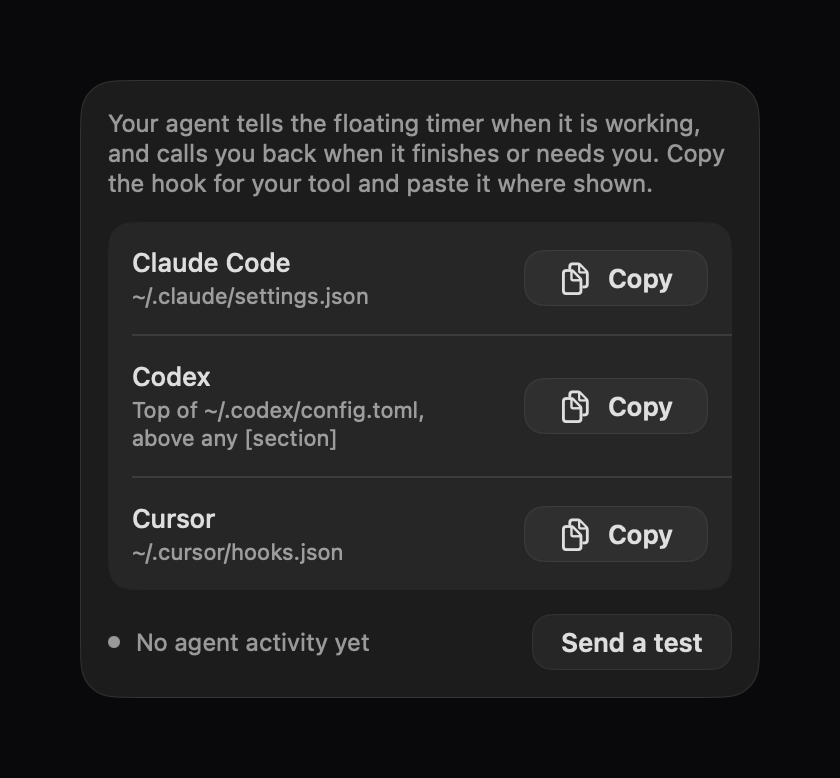
Coding agent hand-off
Start a long agent run, go back to your own work, and come back the moment it is done.
- Hooks for Claude Code, Codex and Cursor open focusly:// links when the agent starts, finishes or needs you.
- The floating timer shows “Claude working · 2:14 · project”, then “Claude done, click to return”. One click returns you to the terminal or editor.
- If you drifted, a notification and a sound fire too.
- Set-up is copy-paste snippets from the tray. Everything is local.
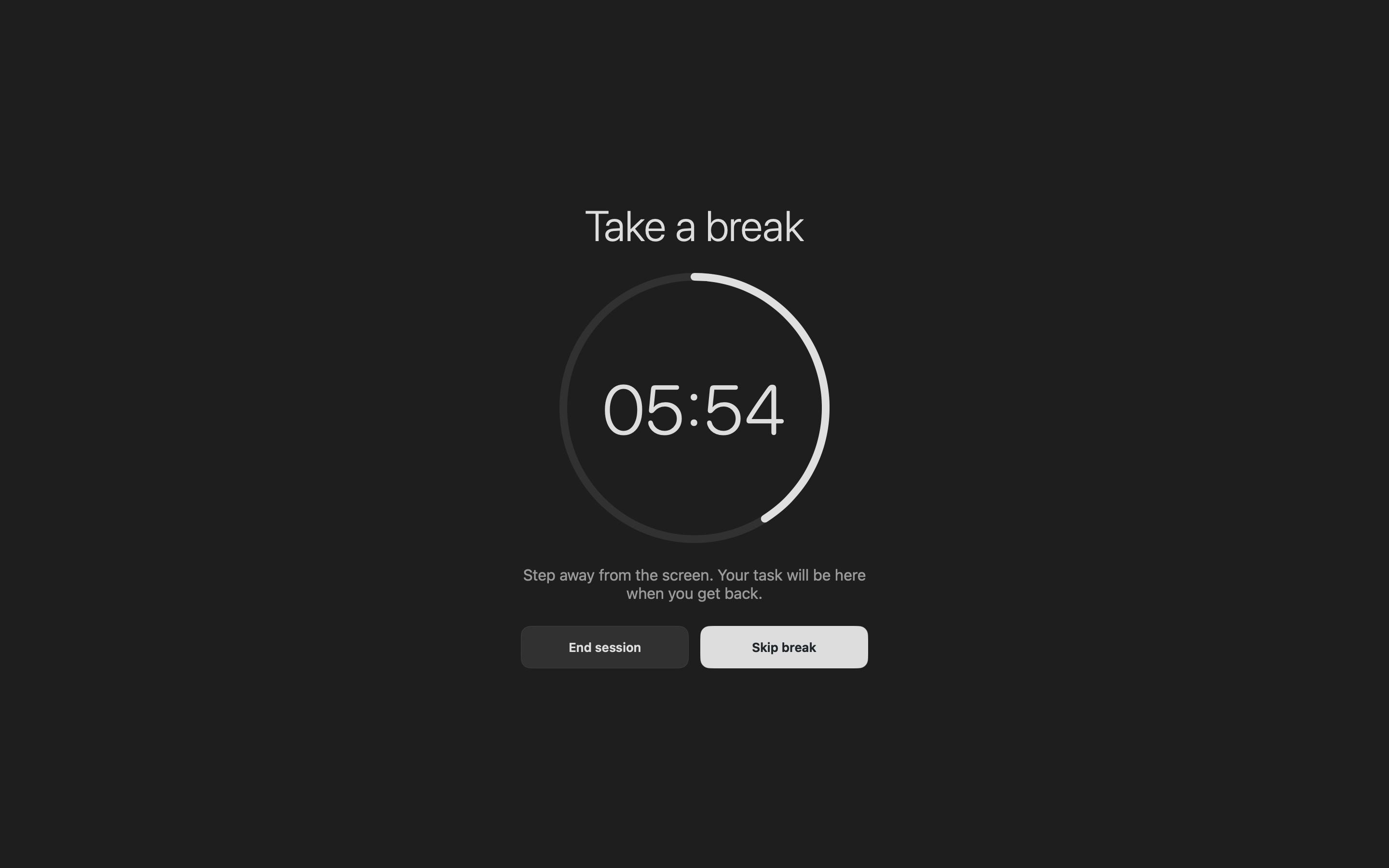
Full-screen break
When a block ends, a calm break covers every display.
- “Skip break” and “End session” are always there.
- The next block never starts on its own. It waits for you.
Re-entry note
The hardest part of a block is starting it again tomorrow.
- After a block, leave one line: “Where did you leave off?”
- Next time, the tray shows it back to you: “Last time: …”.
Drift cue
A gentle nudge, never a wall.
- If you sit in a distracting app for more than two minutes during a block, the floating timer shows “Back to:” and your task.
- Nothing is blocked or closed.
Write the launch post27:41
Standup in 1h 32m11:18 AM
Back to: Write the launch post
Keyboard
Three global shortcuts, so you never go looking for the timer.
- ⌥⌘T starts or stops a block.
- ⌥⌘S skips a break.
- ⌥⌘B shows or hides the floating timer.
Onboarding
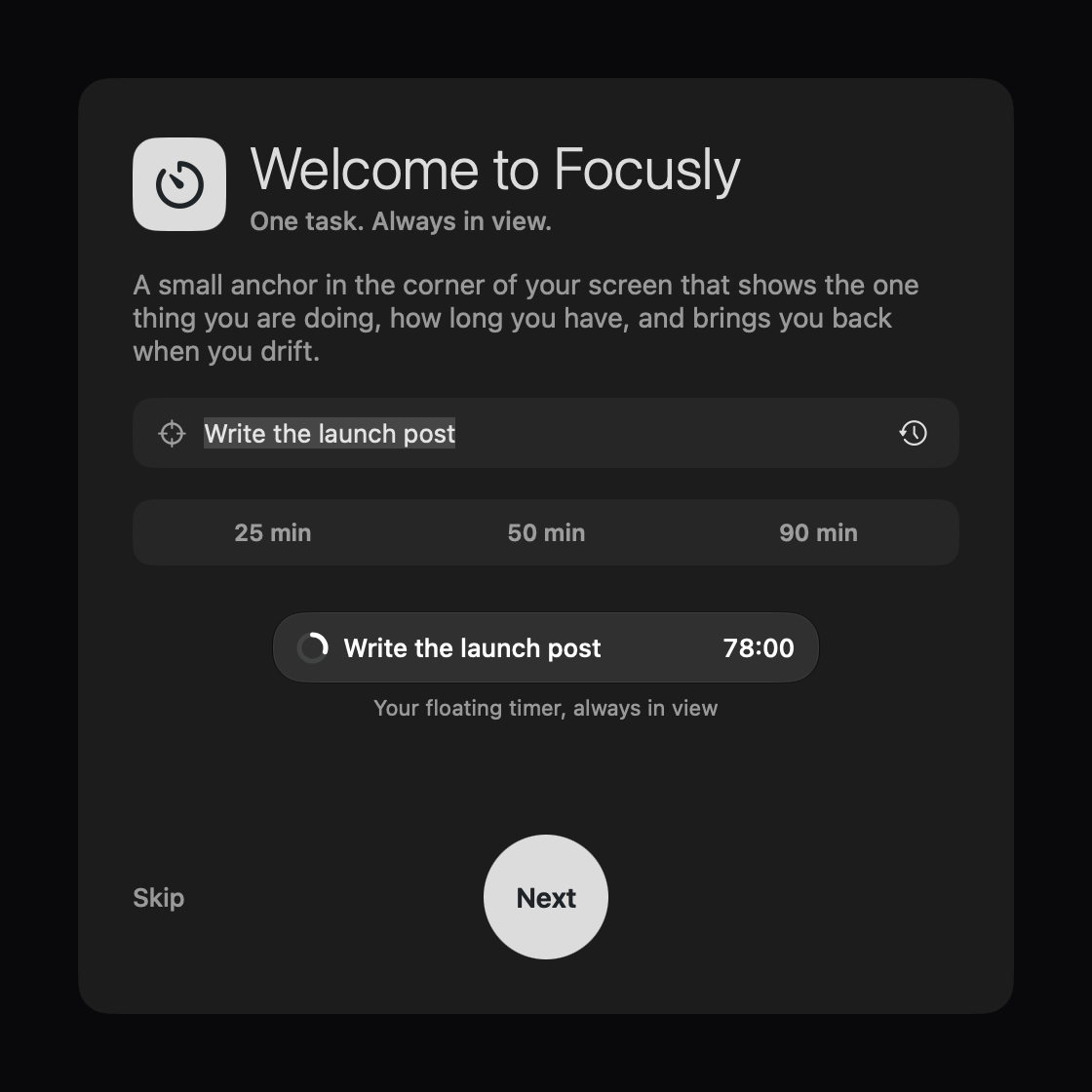
A one-screen welcome gets you to your first block.
- Name your first task and pick a block length.
- See the floating timer before you start, or skip straight in.